Drivers 2.0
Drivers 2.0 is a Blender rigging addon by Weybec Studio that lives in the
N-panel under the Weybec tab. It bundles three powerful tools into one clean interface:
bone-driven shapekey automation, custom viewport control panels, and a per-bone action constraint manager.

What Each Tab Does
DriversShapekey Automation
Point a bone at a mesh, pick a transform channel and axis, set a min/max range, and add a fully scripted driver to any shape key with a single click. No graph editor wrestling needed.
PanelsViewport Control Panels
Generate custom-shape bones (Square, Horizontal, Vertical) that act as in-viewport slider panels. Assign shape keys to directions, add text labels, group everything under a Master Control bone, and lock the rig when done.
ActionsAction Constraint Manager
Per control-bone action slots with direction limits, GPU bone highlights, and a one-click workflow for binding animations to bone positions. Works with Blender 3.6 all the way through Blender 5.x.
N in viewport) → Weybec tab → switch between Drivers / Panels / Actions with the three tab buttons at the top.
Installation
Install the Addon
- Download the addon Zip folder
- Blender → Edit → Preferences → Add-ons
- Click Install, select the zip file
- Enable "Rigging: Drivers 2.0"
- Open the N-panel in any 3D viewport (
Nkey) and click the Weybec tab
Compatibility
- Blender 5.1 and later
- Fully compatible with Blender 5.x (layered actions, new slot API)
After Install — First Steps
- Select your character's armature in the viewport
- Enter Pose Mode
- Open the Weybec N-panel tab
- Use the three tabs at the top to switch between Drivers, Panels, and Actions
Drivers Tab
Automatically wires bone transforms to shape key values using Blender's driver system. No Python scripting or graph editor required — just pick a bone, set a range, and click the driver button next to any shape key.

Setup — Step by Step
- Switch to the Drivers tab in the Weybec panel
- In the Mesh field, pick the mesh object that has your shape keys
- Select the armature bone you want to use as the driver source in Pose Mode
- Set Type — Rotation, Location, or Scale
- Set Axis — X, Y, Z (or W for Quaternion rotation bones)
- Set Direction — Positive or Negative influence
- Enter Min and Max values (degrees for rotation, units for location/scale)
- Click the driver icon button next to any shape key to apply
Driver Settings Explained
TypeTransform Channel
- Rotation — reads Euler rotation in degrees (−180° to 180°). Best for jaw opens, brow raises, etc.
- Location — reads local bone position in Blender units
- Scale — reads local bone scale (use 1.0 as baseline, e.g. min 1.0 max 2.0)
AxisWhich Component
Picks which axis of the transform is read. For Rotation + Quaternion bones, a W option also appears automatically.
Min / MaxTravel Range
The shape key goes from 0.0 to 1.0 as the bone moves from Min to Max. Formula: (value − Min) / (Max − Min), clamped to [0, 1].

Mesh Picker
The Mesh field appears at the top of both the Drivers and Panels tabs — it's shared. Click Set to store the active object as the target mesh, or Clear to reset. The shape key list below updates automatically once a valid mesh with shape keys is assigned.
Supported Bone Types
- Any bone in Pose Mode — works with Rigify, Auto-Rig Pro, custom rigs
- Bones in Euler rotation mode for Rotation type
- Bones in Quaternion rotation mode — W axis exposed automatically
- Root bones, IK targets, FK chains — anything with a local transform
Panels Tab
Creates in-viewport control panels — custom panels with control bones to drive shape keys directly in the 3D view. No more hunting through the Properties panel for shape key values.
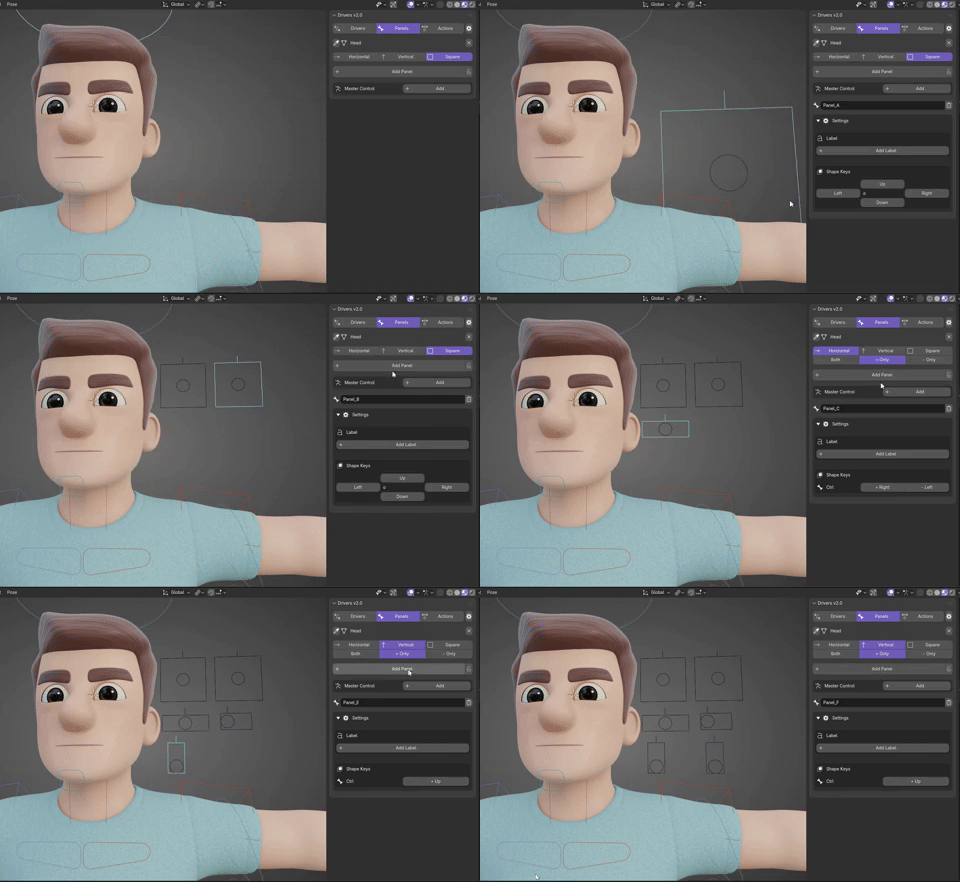
Panel Types
SquareJoystick control
A square frame with a single controller bone inside. Supports four directions (Up, Down, Left, Right), each assigned to a separate shape key. Great for complex facial regions like mouth corners or eye gaze.
Horizontal controlLeft ↔ Right
A wide rectangular frame for single-axis horizontal movement. Assign one shape key to the positive direction and one to negative. Has a Direction Mode: Both, + Only, or − Only.
Vertical controlUp ↕ Down
A tall rectangular frame for single-axis vertical movement. Same direction mode options as Horizontal. Good for brow height, jaw open, chest breathing.
Adding a Panel — Step by Step
- Select your armature and enter Pose Mode
- In the Panels tab, choose a panel type: Square / Horizontal / Vertical
- For Horizontal/Vertical, choose Direction Mode: Both / + Only / − Only
- Click Add Panel
- The panel bones appear at the 3D cursor location or besides the selected posebone
- Select a panel bone to see its settings appear below
- Assign shape keys to each direction in the panel editor
Labels
In the panel editor (select any panel bone to see it), expand Settings → Label:
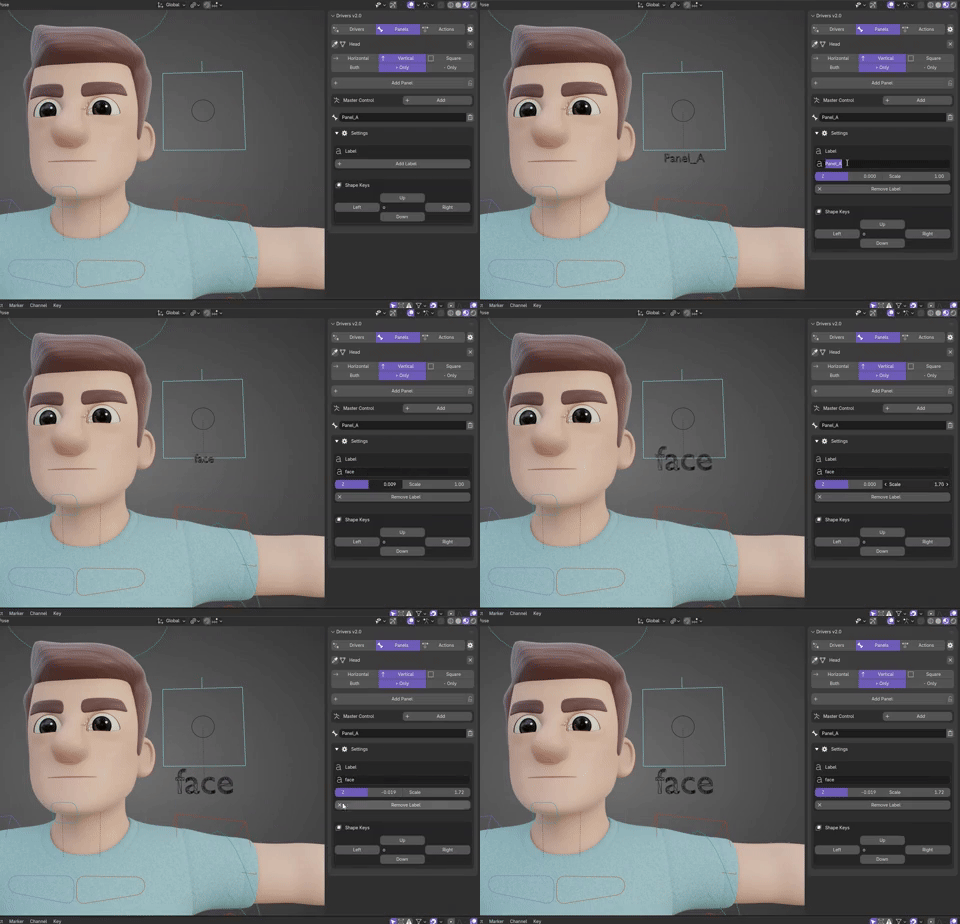
- Click Add Label to attach a font object as a custom shape
- Type any text in the Label field — updates live in the viewport
- Adjust Z Offset to move the text above or below the frame
- Adjust Scale to resize the text
- Click Remove Label to delete it
Bone Colors
Select one or more bones in Pose Mode, then pick a color from the Bone Color dropdown in the Panels tab. Applies to all selected bones instantly. Available colors: Default, Red, Orange, Yellow, Green, Teal, Cyan, Blue, Violet, Pink, White.
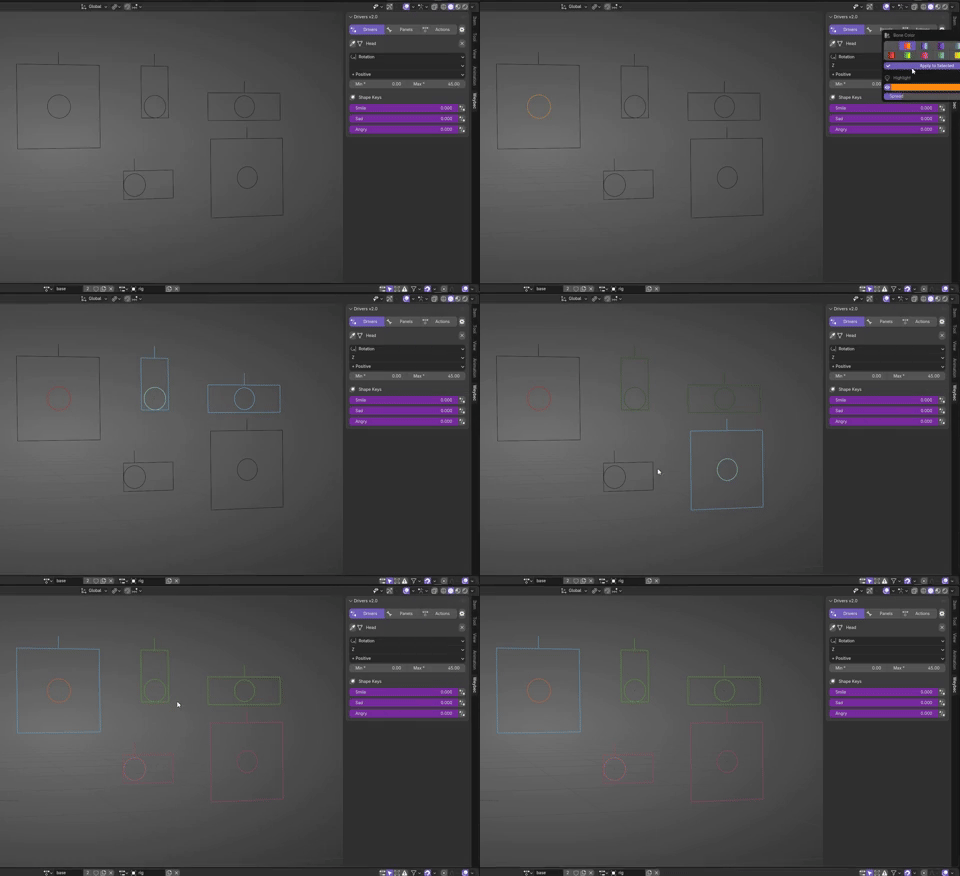
Master Control
The Master Control is a special parent bone that lets you reposition all your panels as a group:
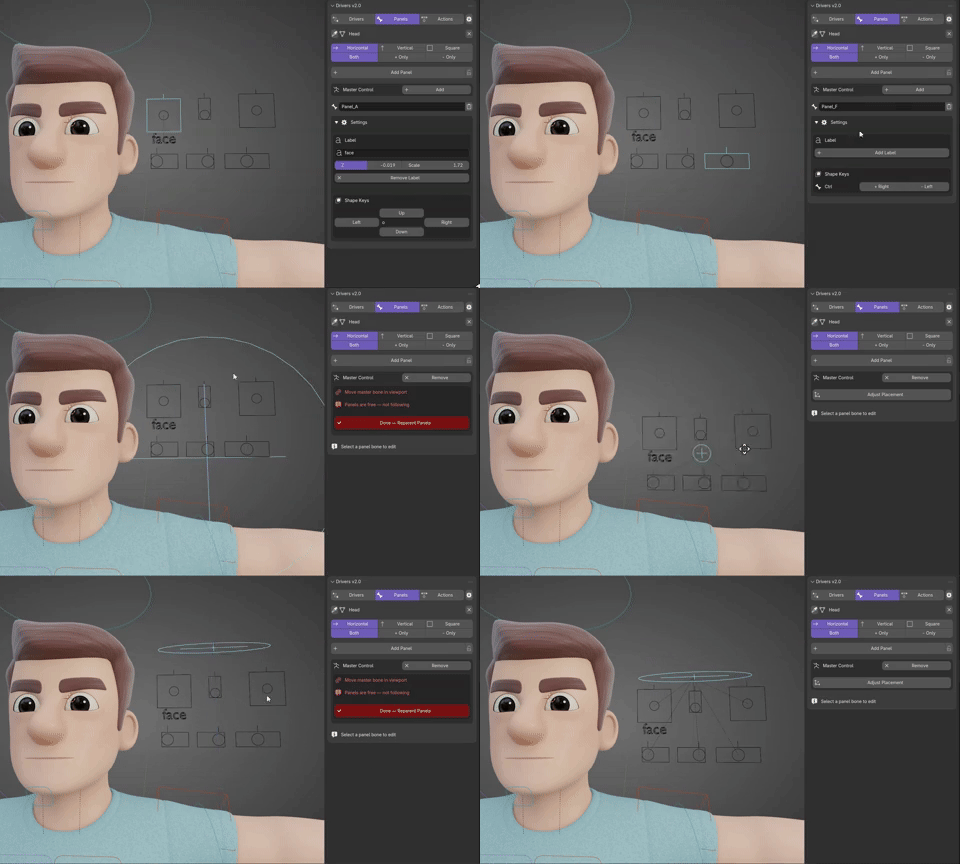
- Click Add next to Master Control — a cross+circle bone appears centred below your panels
- To reposition, click Adjust Placement — all panel bones unparent temporarily
- Grab and move the master bone to the desired location
- Click Done — Reparent Panels — all panels re-parent and keep their relative offsets
- Click Remove to delete the master bone (panels remain in place)
Lock / Unlock Panels
The lock icon button next to "Add Panel" toggles a global lock. When locked, panel bones cannot accidentally be moved or their settings changed. Use this for final delivery rigs.
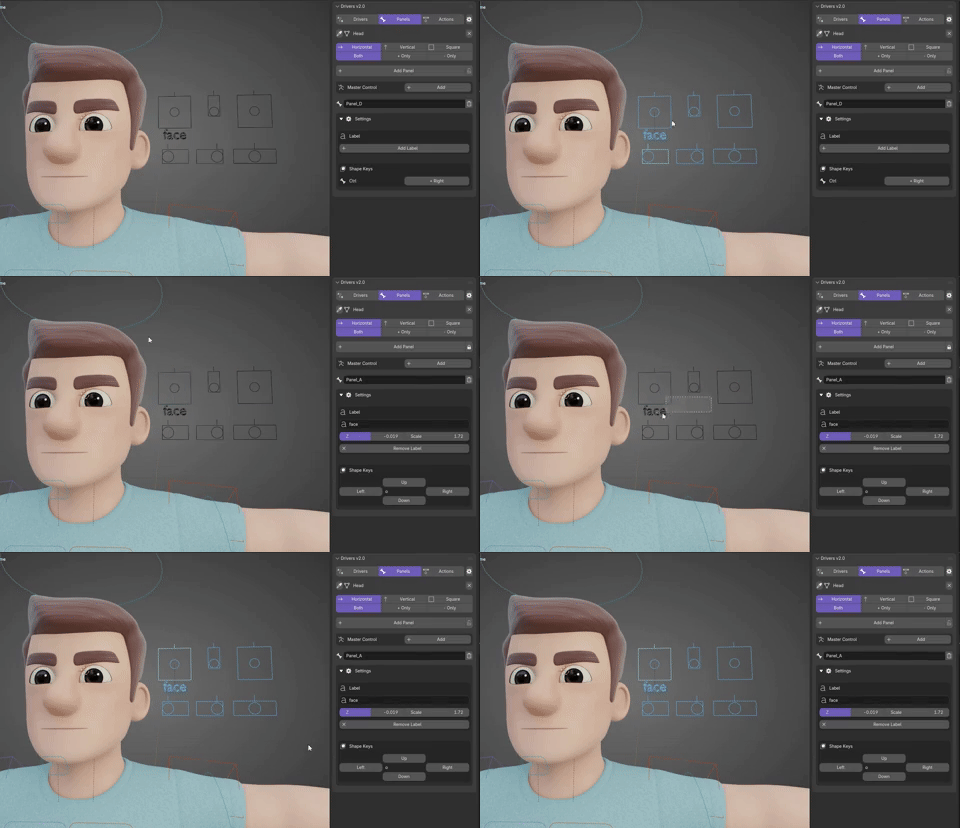
Actions Tab
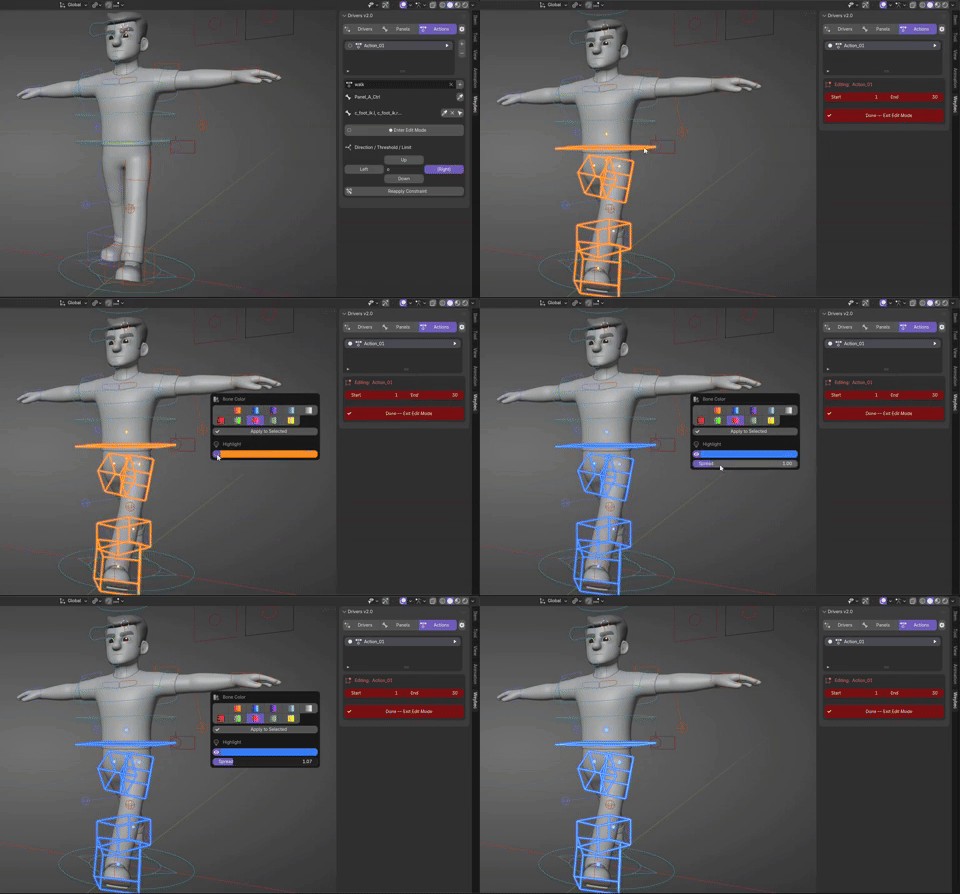
The Actions tab manages Action constraints on a per-control-bone basis. Each bone can have multiple action slots, each fired by a directional movement with optional travel limits. A live GPU highlight system shows exactly which bones are being edited.
Core Concepts
Control Bone Slots
Data is stored per armature, per control bone. Select a pose bone and the panel shows that bone's action slots. Selecting other bones to assign them does not reset or hide the current panel — a Switch button appears if you've moved to a different slot bone.
Action Items
Each slot holds one action item: an Action datablock + a direction (Up / Down / Left / Right) + an optional travel limit. The addon auto-detects which local axes map to world Up and world Right for that bone, so directions always make intuitive sense regardless of bone orientation.
Limit Buttons
Each direction item has a limit toggle. Lock icon = set a LIMIT_LOCATION constraint on that axis. X icon = remove the limit. Limits integrate with panel bones automatically — if a panel bone already has a Smart Limit, the action fires exactly at the bone's physical travel boundary.
GPU Bone Highlight
When an action slot is in edit mode, the addon draws a glowing highlight over the target bone directly in the 3D viewport using a POST_PIXEL GPU draw callback:
- Multi-layer bloom (8 glow passes) — soft halo plus sharp bright line
- Head circle with outer ring indicator
- Respects custom shapes — wireframe follows the actual control shape
- Respects custom_shape_transform bones (e.g. ARP arm IK controls)
- Follows IK / constraints / drivers in real time via the evaluated depsgraph
Highlight Settings
- Color — pick any RGB color for the glow (updates live)
- Spread — controls glow radius and line thickness
- Show Highlight toggle — hide the glow without exiting edit mode
Actions Tab Workflow
- Select the armature, enter Pose Mode
- Select the control bone you want to drive an action
- In the Actions tab, click Add Slot
- Pick the Action datablock to use
- Choose a Direction: Up / Down / Left / Right
- Set the travel Threshold (how far the bone moves to reach full action)
- Optionally enable the Limit button to constrain the bone's physical movement
- Click the radio button to enter edit mode and see the GPU highlight
- Click again or use Switch when selecting a different bone slot
Help & Tips
Common Issues
Shape Key List is Empty
- Make sure the correct mesh is set in the Mesh field at the top of the tab
- The mesh must have shape keys (at minimum a Basis key)
- Click Set with the target mesh selected in the viewport
Driver Doesn't Respond
- Check that the correct bone is selected in Pose Mode when you apply the driver
- Verify Min ≠ Max — identical values produce a zero-division fallback
- Make sure the bone's rotation mode matches — Euler fields show for Euler bones, W appears only for Quaternion
- Open the Graph Editor and check the Drivers view to inspect the generated expression
Panel Bones Snap Back on Master Adjust
- This is normal — panels unparent during Adjust mode so they stay visible in place
- Move the master bone to the new location, then click Done — Reparent Panels
- The baking happens automatically on Done — offsets are preserved correctly
GPU Highlight Not Visible
- Make sure the action slot is in edit mode (radio button lit)
- Check that Show Highlight is enabled in the Actions tab settings
- Increase the Spread value if glow is too subtle on your monitor
- The glow only shows in the 3D viewport, not in renders
Action Tab — "Switch" Button Appears
- This means the bone you've selected is a different control slot from the currently pinned one
- Click Switch to move the panel to the new bone's slots
- The old slot remains saved — no data is lost
Master Control Adjust Mode Stuck
- You must click Done — Reparent Panels to exit adjust mode
- Do not change modes (Object Mode, Edit Mode) manually while adjusting
- If stuck, undo (
Ctrl+Z) back to before Adjust was clicked
Best Practices
- Build drivers first, then create panels — panels can reference the same bone as the driver source
- Use the 3D Cursor to pre-position where panels spawn before clicking Add Panel
- Name your panels immediately after adding — the panel ID is auto-generated (letters A–Z) but the display name is fully editable
- Lock all panels with the lock button before handing a rig to an animator
- For facial rigs, Square panels work best for eyes and mouth; Horizontal/Vertical for brows and jaw
- Keep panel rigs in a separate armature from the deform rig — link them via constraints